Salesforce Twilio Integration Using n8n
Introduction
If you’ve ever worked in a support team, you already know the drill: someone logs a High-priority Case, everyone assumes “someone must have seen it,” and then… nobody actually does. Until it’s too late.
So let’s fix that with something simple and surprisingly powerful:
Whenever Salesforce gets a High-priority Case → n8n catches it → Twilio fires an SMS to the related Contact (or agent).
This isn’t complicated. But it is extremely useful.
And honestly, this is one of those integrations where n8n shines—no Apex callout limits, no messing with Named Credentials, and no “deployment window” drama.
Why n8n for This? (Ask Any Developer)
You can do this in Apex… if you like pain.
- Callout limits will haunt you
- OAuth flows are ugly
- Tests need stubbing
- Deployment means more overhead
- And maintenance isn’t fun
With n8n, it’s more like:
- Drag a node
- Click connect
- Add a condition
- Ship it
Plus, if you change your logic later—maybe send a WhatsApp message instead—no redeploying, no test classes. Just tweak the node.
What You Need
- Salesforce org (any edition with API access)
- Twilio account (a trial works fine for testing)
- n8n Cloud or self-hosted instance
- A Salesforce Connected App
- A working mobile number
Getting the Salesforce Twilio Integration Using n8n Working
Below is exactly how to set it up.
Feel free to adjust the steps based on your own workflow style.
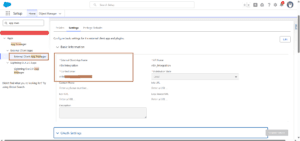
Step 1: Create a Connected App in Salesforce
You need n8n to authenticate into Salesforce the “normal” way.
- Go to Setup → App Manager
- Click New Connected App
- Give it a name like:
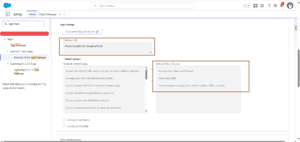
n8n Integration - Enable OAuth Settings
- Callback URL:
(Or your n8n Cloud redirect URL) - Add these scopes:
– Full Access
– refresh_token
– offline_access
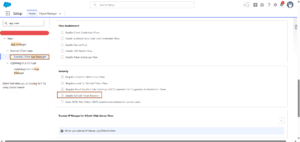
Salesforce will nag you that it takes 10 minutes to propagate—just ignore it and continue.
Step 2: Grab Your Twilio Credentials
Log into Twilio → https://www.twilio.com/
You need three things:
- Account SID
- Auth Token
- Your Twilio Number (must be SMS capable)
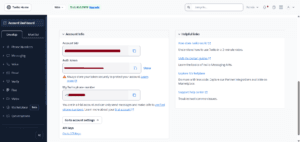
Twilio trial accounts only send SMS to verified numbers, so keep that in mind.
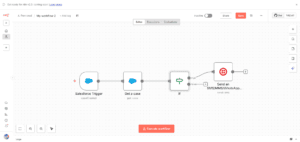
Step 3: Listen for Case Events in n8n
Salesforce doesn’t push events directly to n8n without streaming APIs, so we use a standard Salesforce Trigger node with polling.
- Open n8n
- Create a New Workflow
- Add Salesforce Trigger
- Select: Case → Created
- Choose “Salesforce OAuth2 API”
- Click Connect → Log in → Allow
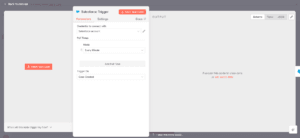
Now n8n will poll Salesforce and detect new Cases.
Step 4: Pull the Case Details
Right after the trigger:
- Add a Salesforce node
- Choose:
– Resource: Case
– Operation: Get - Case ID:
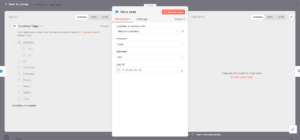
This brings the full Case record into the workflow, including Priority, Subject, CaseNumber, and related Contact info.
Step 5: Add a Condition (Priority = High)
This is where we filter out noise and only act on High-priority Cases.
- Add an IF node
- Condition:
– Field: Priority
– Equals →High - Or using expression:
{{ $(‘Salesforce Trigger’).item.json.Priority }} = High
You’ll see roughly 50% of orgs get this wrong the first time because of capitalization—make sure it matches exactly.
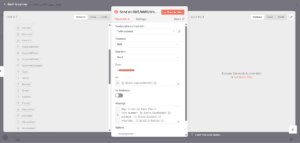
Step 6: Fire an SMS from Twilio
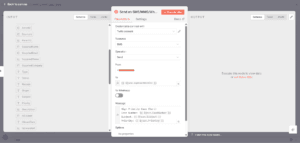
- Add a Twilio node
- Operation: Send SMS
- Enter SID + Token + From Number
To Number
Use the Contact’s mobile field mapped directly: {{ $json.ContactMobile }}
Message Text
Keep it short and informative:
High Priority Case Alert!
Case Number: {{ $json.CaseNumber }}
Subject: {{ $json.Subject }}
Priority: {{ $json.Priority }}
If you want emojis, Twilio handles them perfectly fine.
Step 7: Test the Workflow
Testing from both sides makes life easier.
Test from n8n:
Click Execute Workflow.
Test from Salesforce:
- Create a Case
- Pick Priority: High
- Relate a Contact with a real mobile number
If everything is connected properly:
✔ n8n detects the Case
✔ Checks Priority
✔ Fires Twilio
✔ SMS lands on your phone
And yes, Twilio trial accounts can only send to verified numbers.
Your integration is now live.
Conclusion: What This Automation Really Solves
When you look at this whole setup, it’s not really about the tech stack at all — it’s about making sure urgent customer issues don’t go unnoticed just because someone wasn’t staring at Salesforce at the right moment. This little workflow built with the Salesforce Twilio Integration using n8n gives your team a heads-up instantly, without asking them to refresh screens or chase notifications.
No more “who was supposed to pick this up?” or scrambling after a missed high-priority Case. It just removes a layer of stress for everyone. And if you want to take this idea further — maybe route alerts differently, add logic, or extend it to your entire support flow — feel free to reach out to us at The Pinq Clouds. We set these automations up all the time.